> For the complete documentation index, see [llms.txt](https://ems.help.dotb.vn/llms.txt). Markdown versions of documentation pages are available by appending `.md` to page URLs; this page is available as [Markdown](https://ems.help.dotb.vn/ems-dong-bo-teacher-app/thu-vien-anh.md).
# Thư viện Ảnh
## Upload thư viện ảnh trên EMS.
> Bước 1: Tại màn hình Lớp học, giáo viên chọn module Gallery, chọn biểu tượng Create để tiến hành upload ảnh cho lớp, cho từng học viên
> Bước 2: Điền các thông tin yêu cầu, chọn ảnh để gửi cho học viên, sau đó chọn biểu tượng Save để lưu lại
{% hint style="success" %}
Lưu ý:
Tại phần Related to, người dùng chọn Class thì ảnh sẽ gửi về mobile app cho toàn bộ học viên trong lớp đó. Chọn Student sẽ gửi theo danh sách học viên được chỉ định 
{% endhint %}
> Bước 3: Xét duyệt ảnh để hệ thống gửi về Mobile App, người dùng chọn biểu tượng Approve để hoàn tất thao tác xét duyệt
> Bước 4: Xem xét tình hình gửi ảnh
{% hint style="info" %}
Lưu ý:
* Teacher's like : Hiển thị lượt thích của giáo viên
* Student's like : Hiện thị lượt thích của học viên.
* Comments: nội dung bình luận của giáo viên và học viên.
{% endhint %}
## Upload thư viện ảnh trên Mobile apps
> **Bước 1:** Tại màn hình **Trang chủ**, bấm vào chức năng **Thư viện ảnh**
> **Bước 2:** Bấm vào button dấu cộng để tạo mới album ảnh
> **Bước 3:** Nhập thông tin yêu cầu và chọn ảnh từ thiết bị
> **Bước 4:** Bấm Tạo Album để lưu lại thông tin
{% hint style="success" %}
**Lưu ý:**
Giáo viên có thể chọn tạo thư viện ảnh theo trung tâm, theo lớp, theo học viên


{% endhint %}
{% hint style="success" %}
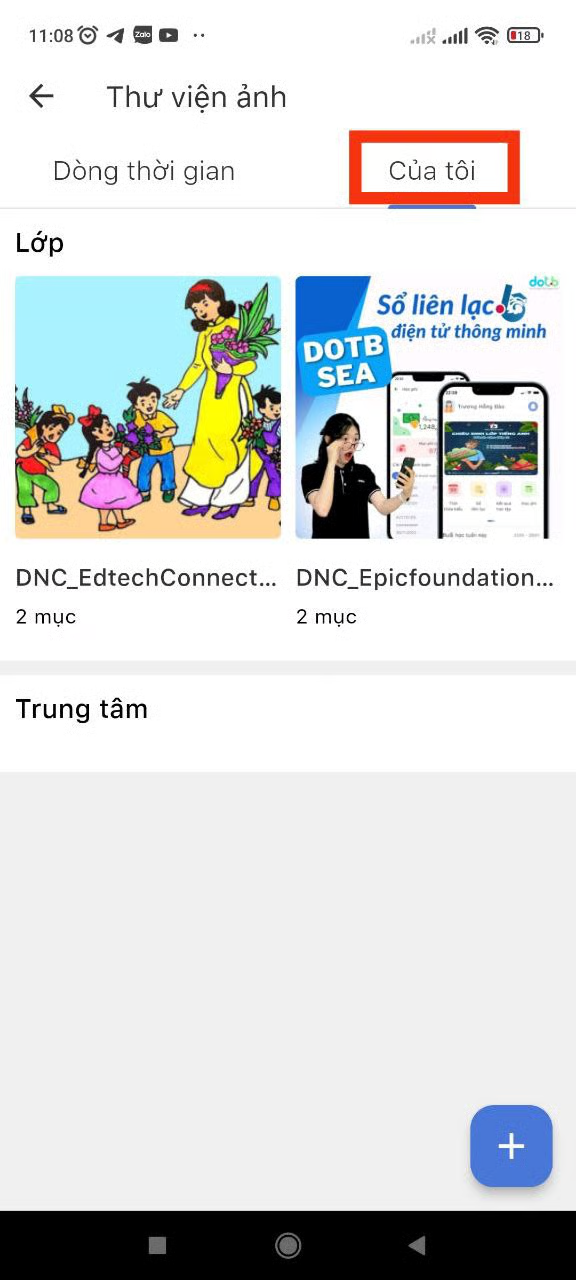
Sau khi tạo thành công, Album ảnh cập nhật vào **Dòng thời gian** và mục **Của tôi**, hình ảnh đã tạo sẽ được hiển thị trên app và tự động đồng bộ lên EMS trong module **Gallery** với người tạo là tên của giáo viên thao tác.
{% endhint %}
> Album trong Thư viện ảnh trên app khi được tạo thành công được hiển thị trong Dòng thời gian cùng với các Album khác
> Mục **Của tôi** hiển thị những Album ảnh thuộc tài khoản của giáo viên đã đăng tải.