> For the complete documentation index, see [llms.txt](https://ems.help.dotb.vn/llms.txt). Markdown versions of documentation pages are available by appending `.md` to page URLs; this page is available as [Markdown](https://ems.help.dotb.vn/dotb-ems/nhom-tinh-nang-danh-cho-quan-tri-vien/nguoi-dung-user/phan-quyen-nguoi-dung.md).
# Phân quyền Người dùng
## Cách 1 : Set Center mặc định
### Bước 1:
Tại avatar người dùng, tại Action Menu, nhấn vào chọn Team Management. Sau đó chọn Center mặc định để set cho Users.
### Bước 2:
Tại màn hình của Center set cho Users, chọn vào Add Users, sau đó chọn người dùng Set vào trung tâm.
**Ghi chú:**
1. Thông tin Users.
2. Center mặc định (chọn cho Users).
3. Chọn phân quyền cho Users (Users có quyền truy cập nào).
4. Trạng thái của Users (Active/InActive).
5. Hiển thị tất cả Users của Center.
6. Thêm Users vào Center (click chọn Users hoặc bạn có thể tích vào ô vuông, sau đó chọn Select (nếu set cho nhiều người)).
1.Thông tin tìm kiếm
2.Danh sách Users
### Bước 3:
Sau khi set người dùng vào trung tâm. Bạn có thể set quyền truy cập cho Users. Sau đó chọn Save.
**Ghi chú**:
1. Center mặc định
2. Phân Quyền cho Users
3.
## Cách 2:
### Bước 1:
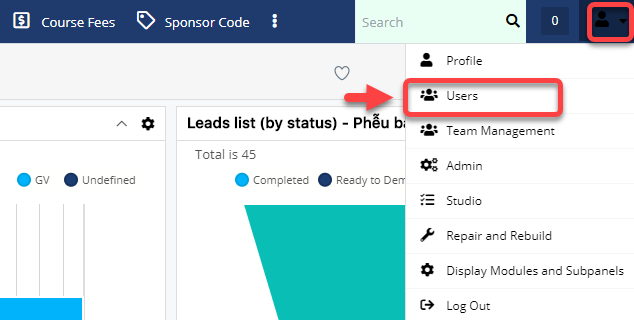
Đưa chuột vào Menu Admin. Tại Action Menu click vào chọn Users. Sau đó Users cần set quyền.
### Bước 2:
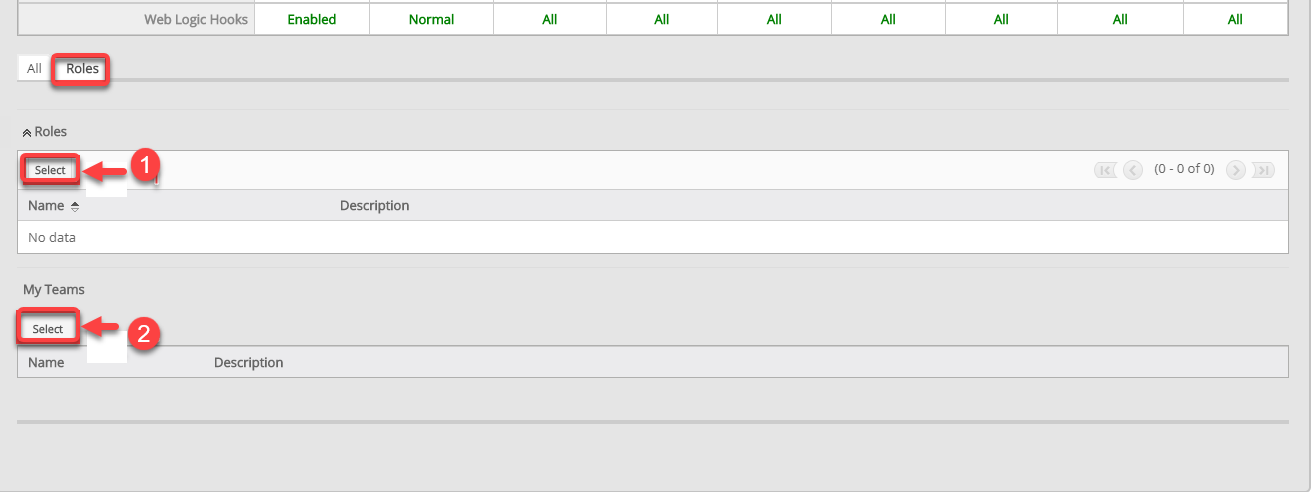
Tại màn hình Users, chọn vào tab Access chọn Roles.
### Bước 3:
Tại màn hình Roles. Chọn vào select để chọn quyền bạn cần set cho Users.
**Ghi chú:**
1. Chọn quyền cho Users
2. Chọn Center cho Users
### Bước 4:
Tại màn hình set Roles cho Users, bạn cho role cần Set (Có thể set cho nhiều users bằng cách chọn vào ô vuông, sau đó click Select), nếu set cho 1 người bạn chọn vào Users đó.
### Bước 5:
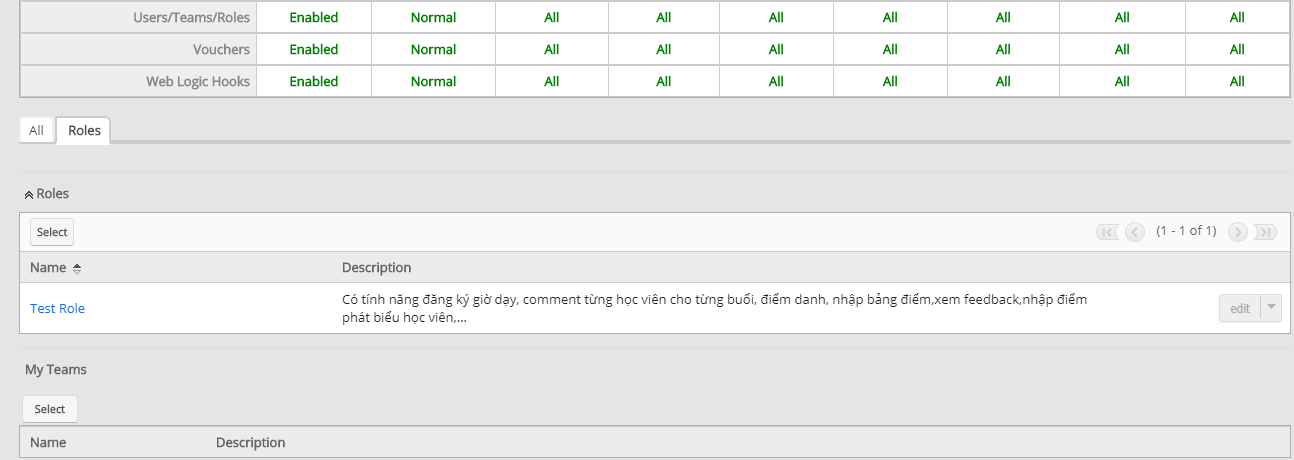
Hệ thống hiển thị thông tin set quyền cho users thành công.