# Đổi thông tin, mật khẩu đăng nhập

### Bước 1:

Tại avatar người dùng, bấm chuột vào **Admin** để mở ra màn hình **Admin.**

<figure><img src="/files/HmzceIthyB1dOx13FzOz" alt=""><figcaption></figcaption></figure>

### Bước 2:

Tại màn hình module **Quản trị**, nhấp chuột chọn "**Quản lý người dùng"**.

<figure><img src="/files/nvA0BG8pZM59W1pxFnvC" alt=""><figcaption></figcaption></figure>

### Bước 3:

**Cách 1:** Nhấn vào biểu tượng để thực hiện chỉnh sửa thông tin.

<figure><img src="/files/eEYBCd1OHmbtp8yiYTjh" alt=""><figcaption></figcaption></figure>

**Cách 2**: Bấm vào tên của người dùng, màn hình thông tin người dùng sẽ hiện ra đầy đủ thông tin  sau đó n**h**ấn vào nút **Sửa.**

<figure><img src="/files/xEnhj05z4FSTNsLipY2m" alt=""><figcaption></figcaption></figure>

<figure><img src="/files/lPQOCNfuxZ1pWLLcRjs0" alt=""><figcaption></figcaption></figure>

### Bước 4:

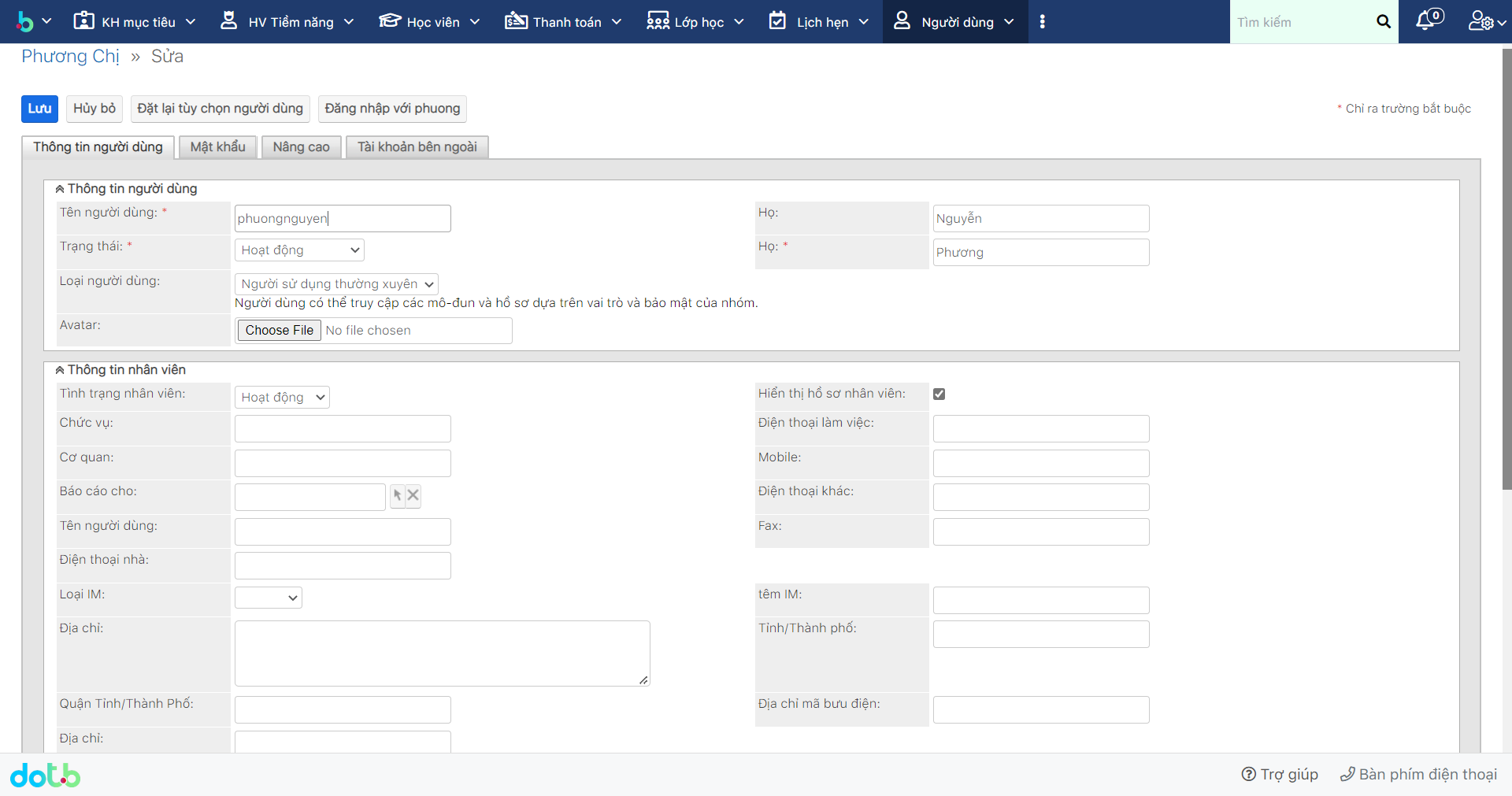
Tại màn hình chỉnh sửa thông tin cá nhân, nhập lại thông tin cần chỉnh sửa.

<figure><img src="/files/gMpcoWBh69ASmKICiJK2" alt=""><figcaption></figcaption></figure>

### Bước 5:

Tiếp theo, nhấn vào tab **Mật khẩu** để đổi mật khẩu.

<figure><img src="/files/Si2P7Wu3yptaKHLME5qC" alt=""><figcaption></figcaption></figure>

<figure><img src="/files/GGngGzU4pI6qebOx8dT9" alt=""><figcaption></figcaption></figure>

### Bước 6:

Sau khi chỉnh sửa thông tin, đổi mật khẩu thì chúng ta tiến hành kết thúc thao tác bằng cách nhấn vào Lưu.

<figure><img src="/files/gFmCnNHr0HVCPYOQixNY" alt=""><figcaption></figcaption></figure>


---

# Agent Instructions: Querying This Documentation

If you need additional information that is not directly available in this page, you can query the documentation dynamically by asking a question.

Perform an HTTP GET request on the current page URL with the `ask` query parameter:

```
GET https://ems.help.dotb.vn/dotb-ems/nhom-tinh-nang-danh-cho-quan-tri-vien/nguoi-dung-user/doi-thong-tin-mat-khau-dang-nhap.md?ask=<question>
```

The question should be specific, self-contained, and written in natural language.
The response will contain a direct answer to the question and relevant excerpts and sources from the documentation.

Use this mechanism when the answer is not explicitly present in the current page, you need clarification or additional context, or you want to retrieve related documentation sections.